Import old CCS project: Difference between revisions
WikiImporter (talk | contribs) (Pushed from DSignT Issue Database.) |
WikiImporter (talk | contribs) (Pushed from DSignT Issue Database.) |
||
| Line 43: | Line 43: | ||
{{pagetop}} | {{pagetop}} | ||
== | == Additional steps that may be required == | ||
=== Build project === | === Build project === | ||
Try to build the project: | Try to build the project: | ||
| Line 59: | Line 59: | ||
=== Eliminate unresolved path or CSL-variable warnings === | === Eliminate unresolved path or CSL-variable warnings === | ||
Press [Alt-Enter] to open properties dialog for the current project. Select "Build - C6000 Compiler - Include Options" and delete "${C6000_CSL_CG_ROOT}/include" and "../csl/include" (C6000 may vary depending on used DSP family): | Press [Alt-Enter] to open properties dialog for the current project. Select "Build -> C6000 Compiler -> Include Options" and delete "${C6000_CSL_CG_ROOT}/include" and "../csl/include" (C6000 may vary depending on used DSP family): | ||
[[File:import_ccsv3_project_property1.png|link=]] | [[File:import_ccsv3_project_property1.png|link=]] | ||
Select "Build - C6000 Linker - File Search Path" and delete "${C6000_CSL_CG_ROOT}/lib" (C6000 may vary depending on used DSP family): | Select "Build -> C6000 Linker -> File Search Path" and delete "${C6000_CSL_CG_ROOT}/lib" (C6000 may vary depending on used DSP family): | ||
[[File:import_ccsv3_project_property2.png|link=]] | [[File:import_ccsv3_project_property2.png|link=]] | ||
Revision as of 12:05, 11 April 2012
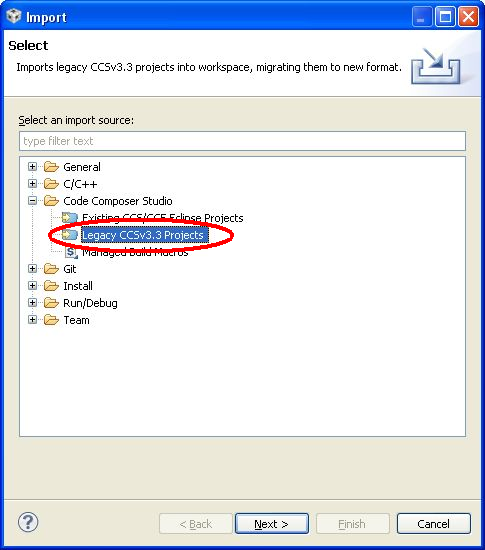
'File' - 'Import'
To import an old CCS project to CCS4/CCS5 choose 'File' - 'Import' from CCS menu.
Legacy CCSv3.3 Projects
In the 'Import' dialog select 'Legacy CCSv3.3 Projects' and click 'Next >'

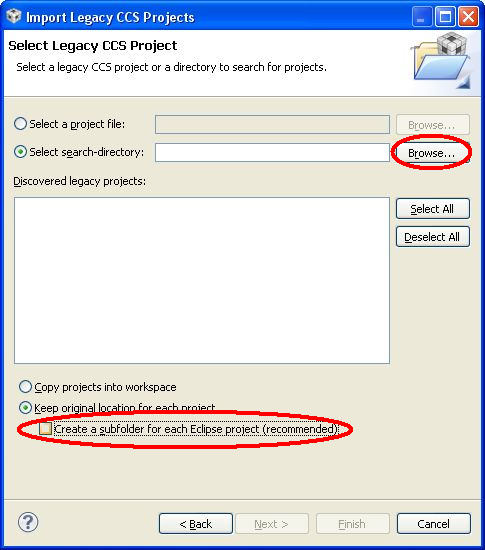
Select Legacy Project
In the following dialog browse for the import directory
|
|

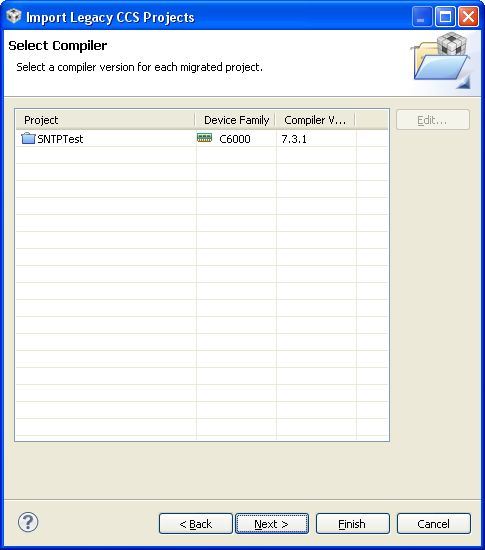
Select Compiler
Select compiler tools and press 'Next >'
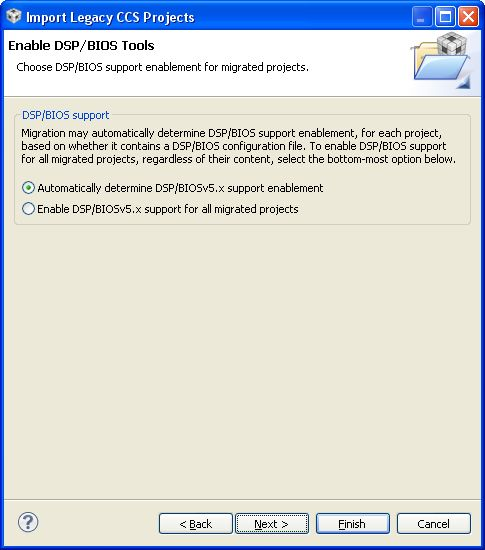
Enable DSP/BIOS Tools
Choose 'Automatically determine DSP/BIOS support' and click 'Next >'
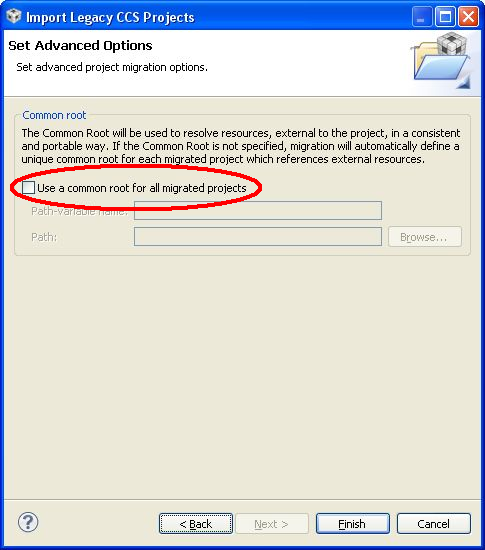
Advanced Option: Common root
De-activate 'Use a common root for all migrated projects' and press 'Finish'
Additional steps that may be required
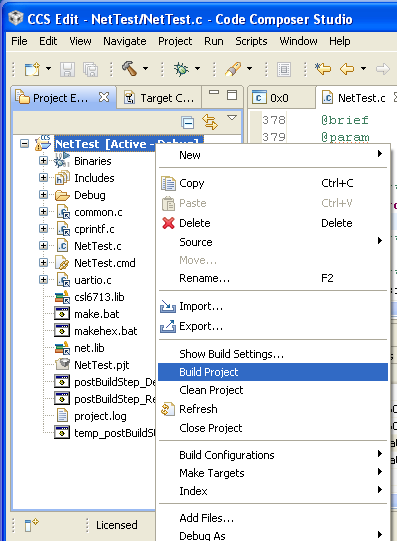
Build project
Try to build the project:
If CSL is not installed properly, warnings may occur:
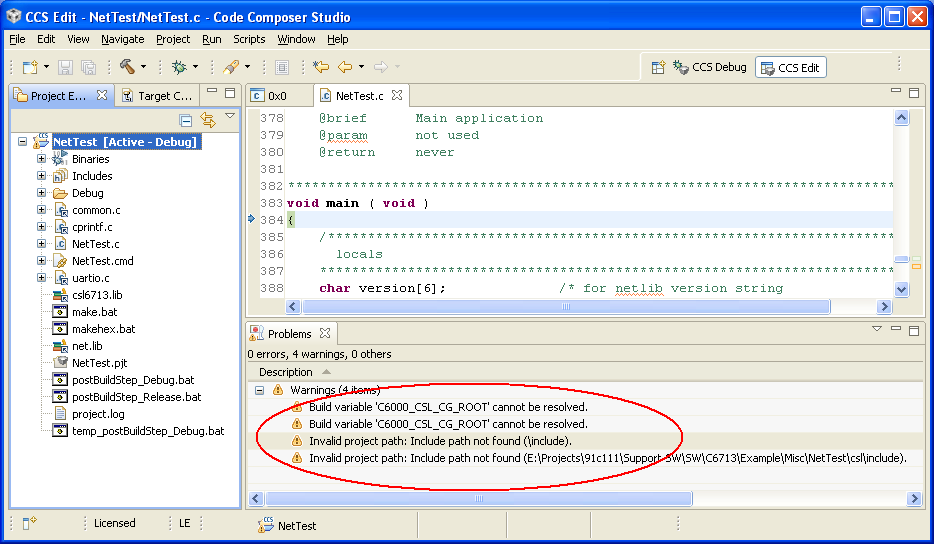
Eliminate unresolved path or CSL-variable warnings
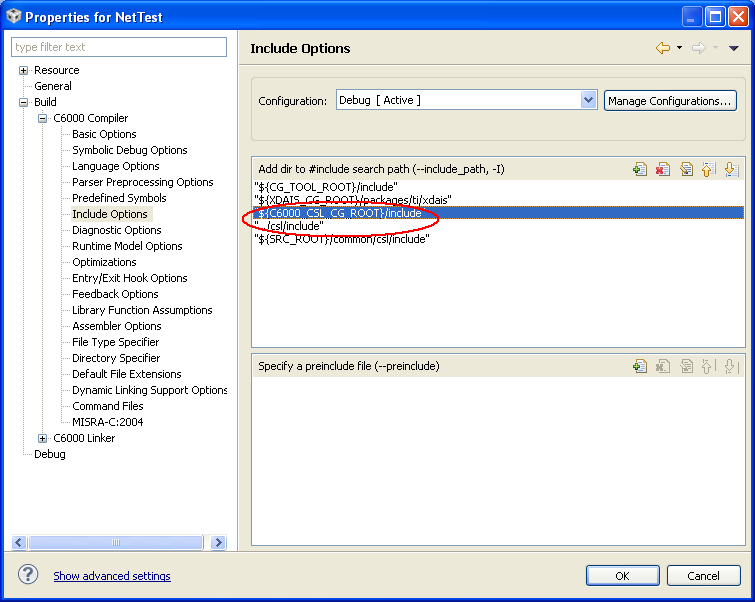
Press [Alt-Enter] to open properties dialog for the current project. Select "Build -> C6000 Compiler -> Include Options" and delete "${C6000_CSL_CG_ROOT}/include" and "../csl/include" (C6000 may vary depending on used DSP family):
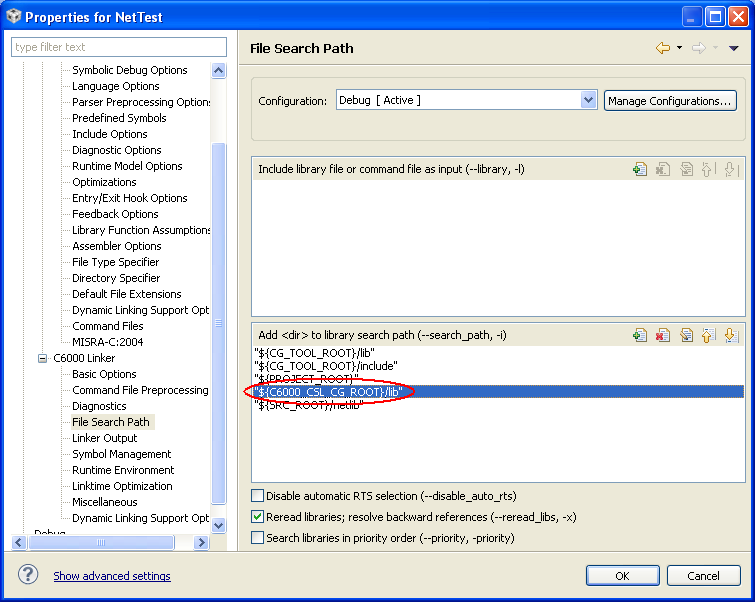
Select "Build -> C6000 Linker -> File Search Path" and delete "${C6000_CSL_CG_ROOT}/lib" (C6000 may vary depending on used DSP family):
The project should compile now without warnings.
Additional Tags
Contact  Support
